LightVision is in beta — join free, no card required →
Features

The whole shoot, handled.

Weddings, events, portraits, pets — four stages, one platform. Every product view below is rendered by the same interface code as the app.

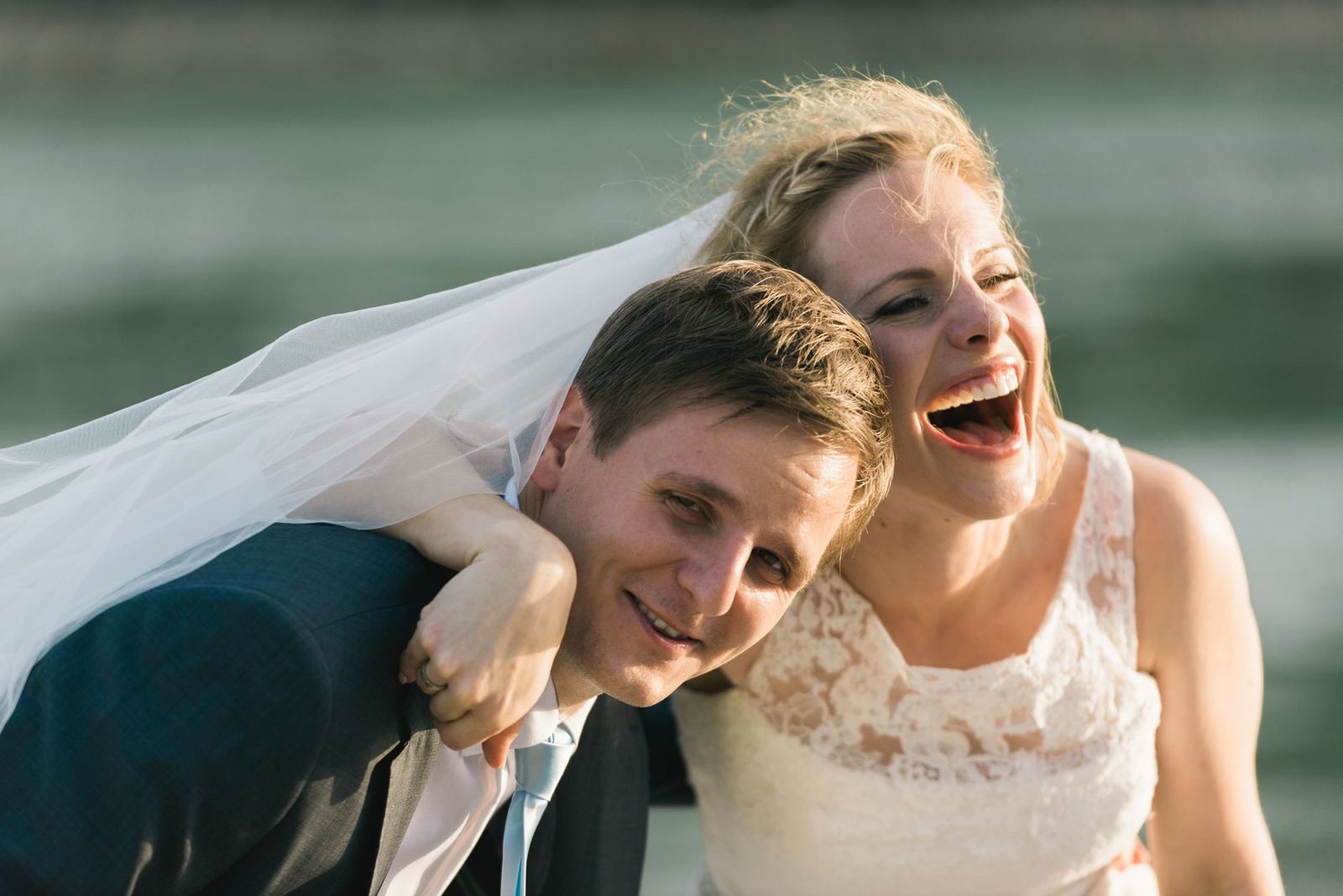
Laughing bride and groom
Concert crowd with hands up
Dog mid-leap on a forest trail
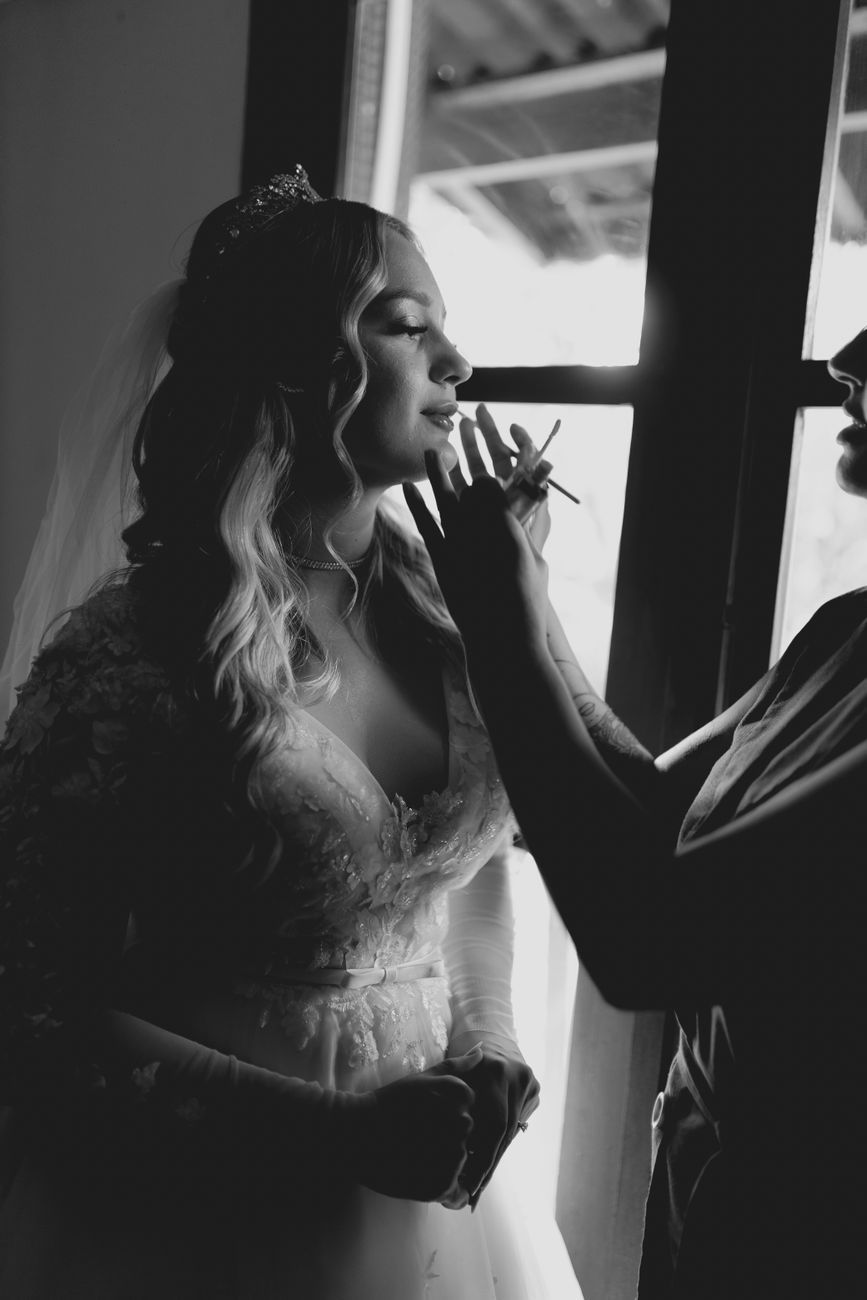
Bride getting ready in window light
Conference audience and stage
01 · Cull

AI selects your keepers

Every frame is graded 0–100 across seven dimensions — Clarity, Focus, Open Eyes, Warmth of Emotion, Composition, Energetic Moment and Exposure — then combined into an overall score and a Pick / Alternate / Review recommendation.

  • Duplicate & burst grouping collapses near-identical frames into one decision.
  • Person-aware: different people are never merged as duplicates.
  • Runs on-device by default — your shoot never has to leave your machine.
Eyes-Open · Best Take

The blink, fixed — from the burst itself

When the best frame of a burst has someone mid-blink, LightVision borrows that person's open eyes from another frame in the same burst — aligned, harmonized and identity-verified. The donor is your client's own frame, never a generated face.

  • Works on group shots — each blinker is fixed from their own best frame.
  • Identity gate: it never borrows the wrong person's eyes.
  • Non-destructive — the borrowed eyes are saved as a layer on the keeper you can undo at any time.
Live product · current renderer
Open app
Loading the real appPreparing the safe sample shoot…
Walkthrough
Grade The real contact sheet with prepared practice-shoot scores
02 · Edit

Edited in your style, automatically

LightVision reads the develop settings from your finished work and gives every new import a matched first-pass edit by scene and lighting. It learns your full grade — tone curves and an 8-band color mixer, not just exposure sliders — and keeps a separate profile per shoot type, so your wedding look never bleeds into corporate work.

  • Learns from your XMP sidecars, DNG settings or delivered JPEGs.
  • Tunes to the actual lighting — what you do to high-ISO, backlit or warm-white-balance shots.
  • You stay in control — it's a head start, not a hijack.
Face AI · Low-light rescue

The face rescuer for dim rooms

Receptions and ceremonies are shot at high ISO, and faces come back soft and grainy. LightVision's on-device face restore is built to rescue exactly those faces — it measures each face's sharpness and noise, only recommends restoration where degradation is real, then restores texture and detail.

  • Live in the editor with a 0–100 strength slider and per-face masking.
  • Restores detail and texture rather than lifting exposure — brightening stays a separate develop step.
  • Non-destructive, so you control how much of the restored face blends back in.
Live product · current renderer
Open app
Loading the real appPreparing the safe sample shoot…
Walkthrough
Develop The real non-destructive editor
Find

Find anyone, anything, any moment

Once a shoot is in, LightVision understands it — by face, by meaning and by moment — all on-device, no cloud, no API key.

Live product · current renderer
Open app
Loading the real appPreparing the safe sample shoot…
Walkthrough
Search The real meaning-based search results
Click-a-face person search

Pick a face, find every shot

Powered by on-device face recognition, LightVision groups everyone by who they actually are — robust across pose, lighting and expression. Right-click any face and choose "Show all photos of this person" to pull every shot they appear in across the shoot.

  • Right-click any face to name the person or tag a role — Bride, Groom, Best man — and the name sticks to their identity as the shoot grows.
  • Runs fully locally — your guests' faces never leave your Mac.
  • Works on RAW files too, reading the camera's embedded preview.
People hub · Coverage

Everyone covered — down to the family group shot

Set "Require 1, 2, 3 or 5 in Picks of each person" and LightVision flags anyone who falls short. Then define must-have groups — "Couple + bride's parents" — and it checks that a frame with the whole group together actually landed in your Picks, before the client ever asks.

  • Per-person progress — 2 of 3 in Picks · needs 1 more — with the biggest gaps sorted first.
  • One click — Add best — fills each gap with the top-ranked frames you haven't picked yet.
  • Face matching runs on-device; guests' faces are never uploaded.
Client gallery · Guest face-search

Guests find their own photos — privately

Turn on "Let guests find themselves by face" — strictly opt-in and off by default — and a delivered gallery gains a "Find my photos" picker. A guest taps their own face and the grid filters to just the shots they're in, on any device.

  • Matching runs entirely in the guest's browser — nothing is sent to any server during a search.
  • Only anonymous face vectors are published — no names, no identities — and nothing loads until the gallery password is unlocked.
  • One honest limit: it's a deterrent, not encryption, and it can occasionally miss a face.
Meaning-based search

Search in plain English

Type "kids laughing" or "golden hour by the lake" and LightVision finds the shots that look like that — not just ones tagged that way. It's the default search, ready the moment photos are imported. One-tap preset chips — kissing moments, candid laughs, group photos — build themed collections instantly, and any search saves as a live collection.

  • Right-click any photo and "Find visually similar" to pull every lookalike.
  • No grading, no pre-tagging, no waiting — it works on import.
Narrative collections · Story Arc

The shoot, sorted into moments

LightVision automatically sorts each shoot into named moment collections — Getting Ready, Ceremony, First Kiss, First Dance, Cake Cutting, Speeches, Dancing — tuned to the shoot type, then builds a chronological Story Arc that walks your best picks through the day in order.

  • Every shoot gets its own moment folders plus a per-scene breakdown, rebuilt automatically as photos are graded.
  • Tuned to the job — wedding, event, corporate, portrait or product each get their own named moments.
Local masks · Non-destructive

Shape the area, tune the light

Add a radial mask, place it over the subject and shape its soft edge while the coverage overlay shows exactly where the adjustment will land. Then use the same real controls as the editor to change exposure, warmth and more only inside that selected area.

  • See the exact coverage before changing a pixel, then hide the overlay to judge the finished photograph.
  • Exposure, temperature and other local controls stay attached to the mask as an editable adjustment layer.
  • Use the native compare wipe to check the locally adjusted result against the untouched original.
03 · Deliver

Client galleries that wow

Publish a polished client gallery with favorites and email-gated downloads — on your own domain, in your brand.

Live product · current renderer
Open app
Loading the real appPreparing the safe sample shoot…
Walkthrough
Gallery The real client-gallery builder
04 · Sell

Turn galleries into print sales

Switch on the built-in print store. Clients order wall art, albums and prints straight from their gallery — in your brand's colors — and a pro lab prints and ships every order. Manage it all from the photographer portal.

Live product · current renderer
Open app
Loading the real appPreparing the safe sample shoot…
Walkthrough
Sell The real store and pricing controls
05 · Protect

Sell the work — don’t give it away

Turn on protection and your images stay yours until a client pays. Previews carry a watermark baked into the pixels — not an overlay a right-click can peel off — while the full-resolution files stay off the page entirely, released one at a time to the client who bought them. Included-download counts are enforced on the server, so a private window doesn't reset them.

One honest caveat: no gallery online can stop an OS screenshot — which is exactly why the watermark is baked into whatever a screenshot captures.

Feature questions, answered

How does LightVision cull thousands of photos?+

It grades every frame 0–100 on seven dimensions — clarity, focus, open eyes, warmth of emotion, composition, energetic moment and exposure — then sorts them into Pick, Alternate and Review, with duplicate and burst grouping so near-identical frames become a single decision.

Can it edit photos in my own style?+

Yes. LightVision reads your real develop settings from finished work, builds a per-shoot-type profile, and applies a matched first-pass edit to new imports by scene and lighting. You stay in control of the final look.

Can it fix a blink in the best shot?+

Yes — Best Take borrows that person’s open eyes from another frame in the same burst, blends them onto the keeper, and verifies it is the same person so it never uses the wrong eyes. It works per person in group shots, the donor is always your client’s own frame — never a generated face — and it’s a layer you can undo anytime.

Can it rescue faces shot in poor light?+

Yes. On-device face restore is built for the soft, grainy faces that dim receptions and high-ISO ceremonies produce — it measures each face’s sharpness and noise, only suggests restoration where degradation is real, and gives you a 0–100 strength slider per face. Non-destructive, so you control the blend.

Can I find a specific guest across the whole shoot?+

Yes. Right-click any face and choose “Show all photos of this person” to pull every shot they appear in. Recognition runs on-device — no cloud upload of your guests’ faces — and holds up across pose, lighting and expression.

Can I make sure I deliver enough shots of each person?+

Yes. Set “Require 1, 2, 3 or 5 in Picks of each person” and the People hub flags anyone who falls short, biggest gaps first. One click adds each missing person’s best unpicked frames until the gap closes — all matched on-device, so guests’ faces never leave your Mac.

Can I name people and tag wedding roles?+

Yes. Right-click a face to type a name or tag a role — Bride, Groom, Best man and more. Names bind to the face’s identity rather than a throwaway “Person 7,” so they stick as the shoot grows, and they save with your project.

Can I check I got the family and group shots?+

Yes. Define must-have groups from people you’ve named — “Couple + bride’s parents” — and LightVision checks whether a frame with the whole group together made your Picks. “Add best” fills any gap with the highest-scoring together-frames. Matching is best-effort face recognition, so give the results a glance.

Can wedding guests find their own photos in the gallery?+

Yes, and it’s off by default. Flip on “Let guests find themselves by face” per gallery and guests tap their own face to filter to their photos — matching runs entirely in the guest’s browser, and only anonymous face vectors are published, never names or identities. Nothing works until the gallery password is unlocked.

Can I search my photos in plain English?+

Yes. Meaning-based search runs on-device — type “kids laughing” or “golden hour by the lake” and it ranks your library by what the pixels actually show, not by tags. It’s the default search and works the moment photos are imported. Any search saves as a live collection.

Does it organize the shoot into moments?+

Yes. LightVision automatically sorts each shoot into named moment collections — Getting Ready, Ceremony, First Kiss, First Dance, Speeches, Dancing — tuned to the shoot type, and builds a chronological Story Arc that walks your best picks through the day in order.

Can I make precise local adjustments with masks?+

Yes. Add a radial mask, place and feather it over the area you want to change, then adjust exposure, warmth and more only inside that selection. The mask stays editable and non-destructive, with a coverage overlay and before/after compare.

Can I deliver galleries and sell prints from the same app?+

Yes. Publish polished client galleries with favorites and email-gated downloads, and switch on the built-in print store — a pro lab prints and ships every order.

Spend your weekends shooting, not culling.

LightVision is in beta — join free, no card required, and we'll help you get set up.